Utilizing Layout Management
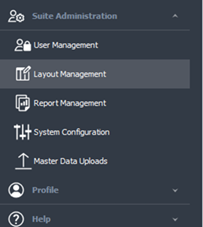
To access the Layout Manager from the Main menu, select Suite Administration > Layout Management.
Only System Administrators will have access to configure the layouts for other users.
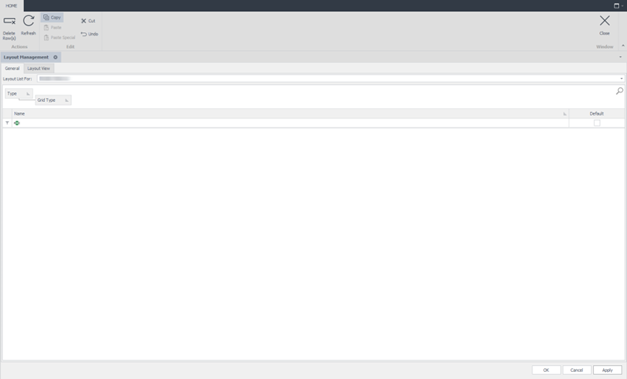
The Layout Management page appears. The Layout Management tool is user specific. This means any layouts listed in the window are layouts the logged-in user has previously created and saved through the various page’s Layout ribbon bar functionality, or layouts that have been shared with this user.
From the General tab, you can view the available layouts and delete any layouts that are no longer required. To delete a layout, highlight the line item by clicking on it, then click the Delete Row(s) icon located on the ribbon menu.
Click the View tab to view the basic outline of the selected layout. Any changes made to the layout from this preview will not be saved; this is strictly for viewing purposes. All changes must be done from the page to which the layout applies.
If you are viewing a time sheet layout, you must be in the time sheet page to change the layout
Click Apply or OK on the bottom right to exit the Layout Management window.